What this step is
Install an app on each device you’ll use and import the subscription URL. The app then picks up both nodes and all the routing rules.
The login-info file has two subscription URLs — don’t mix them up:
| Subscription URL | For |
|---|---|
| The Clash Verge Rev / OpenClash / Mihomo row | Computers (Windows, Mac), Android, routers |
| The Shadowrocket (iPhone) row | iPhone, iPad |
1. Install Clash Verge Rev
Download the latest version from the official releases page github.com/clash-verge-rev/clash-verge-rev/releases, choosing the file for your system and chip. Which file: see the Windows and Mac how-tos.
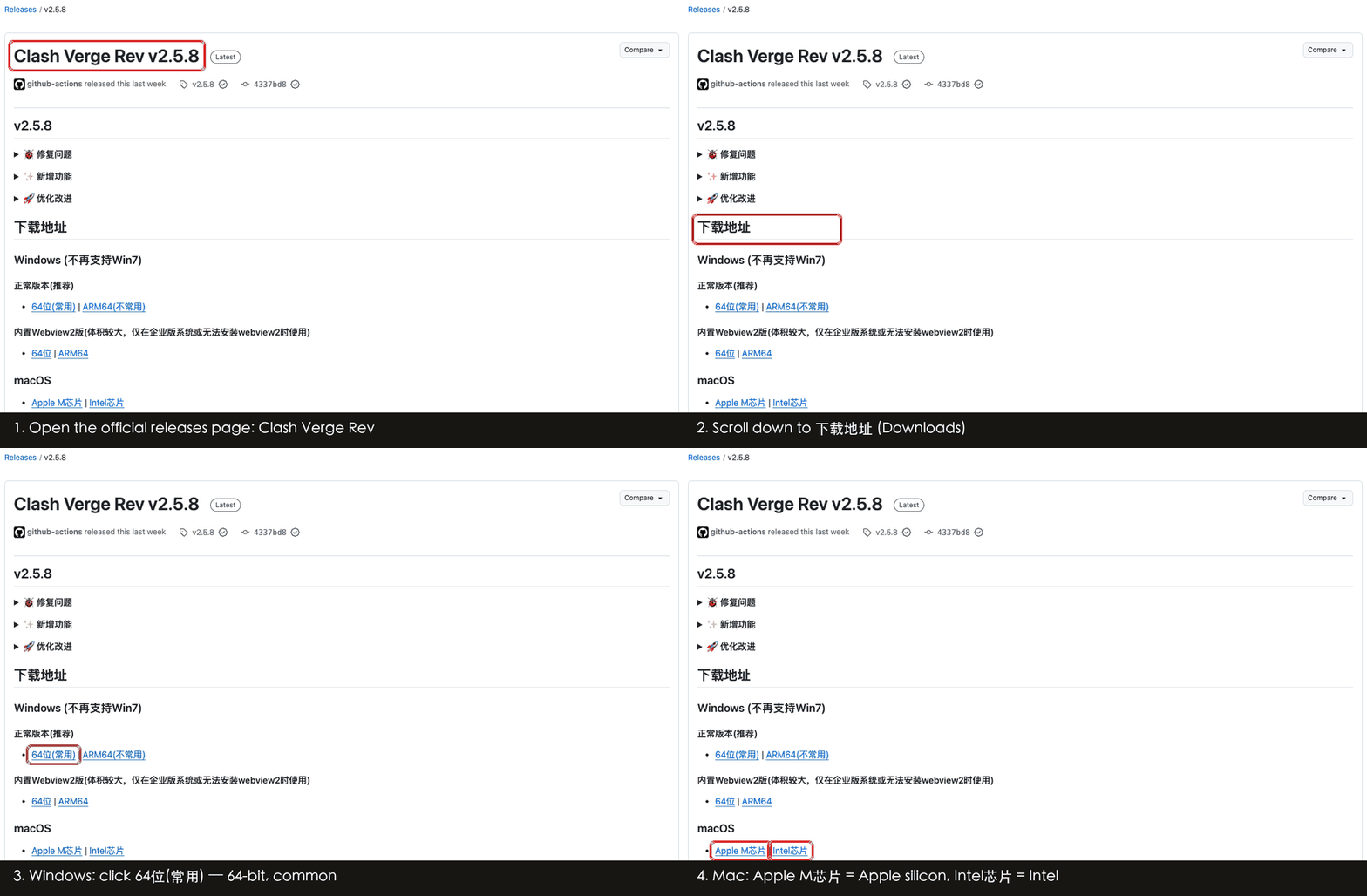
2. Import the subscription
- Open Clash Verge and click Profiles on the left.
- Paste the Clash subscription URL into the “Profile URL” box at the top and click Import.
- Click the new profile card so it becomes the selected one.
3. Choose Rule mode and turn on Tun Mode
- Click Proxies on the left and choose Rule mode at the top.
- Click Settings on the left and turn on Tun Mode. The first time it says the service is required — click Install Service; on Windows click “Yes”, on Mac enter your login password.
- Windows only: click the gear next to Tun Mode, turn on Strict Route and save.
Why Tun Mode, and more details: Turn on TUN mode.
1. Install Shadowrocket
Shadowrocket isn’t in the China App Store. Buy it from another region’s App Store (for example the US) with a non-China Apple ID — a one-off purchase of about US$3. No such Apple ID? See Create a non-China Apple ID.
2. Import the subscription
- Open Shadowrocket and tap + at the top right.
- Set Type to Subscribe.
- Paste the Shadowrocket subscription URL from the login-info file into URL and tap Done.
- Two nodes appear; tap one (preferably
name-Reality) to select it.
3. Connect
Turn on the connection switch at the top. The first time it asks to add a VPN configuration — tap “Allow”.
More: Shadowrocket (iPhone, iPad).
1. Install an app
We recommend FlClash or Clash Meta for Android, both open source. Download the APK from their official GitHub releases page — see Android apps.
2. Import the subscription
Find “Profiles” (or “Subscriptions”) in the app, choose “Import from URL”, paste the Clash subscription URL (the same one your computer uses), save and select it.
3. Connect
Go back to the home screen and turn it on. The first time it asks to create a VPN connection — tap “OK”. Choose Rule mode.
On a router, use OpenClash (the router must run OpenWrt), so every device at home is covered without installing apps. This is advanced — see OpenClash on a router (advanced).
It uses the same Clash subscription URL. Rule files are downloaded from your own server, so the router never needs GitHub.
Stuck?
Import fails, or no nodes appear?
Check you pasted the right URL (Clash subscription for computers, Shadowrocket subscription for iPhone), complete and without extra spaces. Still stuck? Open the URL in a browser: if a long block of text appears, the server is fine and the issue is in the app; if it doesn’t open, your current network can’t reach the server.
With Tun Mode on, no site loads?
Quit other VPNs, game boosters and company VPNs first — they fight over the same virtual network interface. Allow Clash Verge if Windows Firewall asks. Still failing? Turn off Strict Route and try again.
“TUN Mode Service Required”, but installing the service fails?
On Windows, right-click Clash Verge and “Run as administrator”, then turn on Tun Mode. More cases: Turn on TUN mode.
Can my phone and computer connect at the same time?
Yes. You and your family can use the same subscription on several devices at once.
Before moving on, check
✓ All ticked — on to the next step.